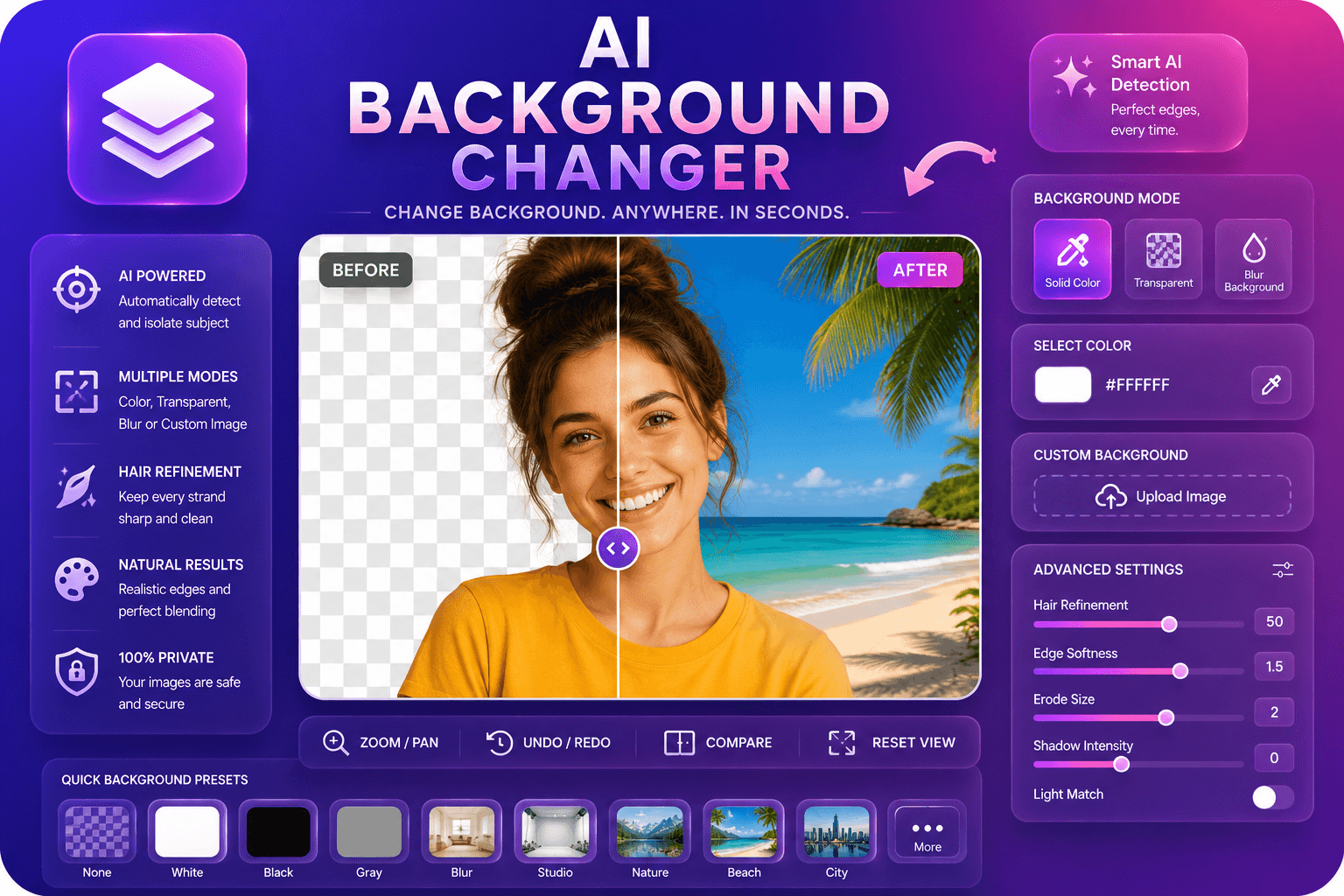
AI Background Changer
Replace image backgrounds with colors, blur, or custom images.
Launch ToolBrowse 57 free image tools — convert, compress, resize, and edit with AI.
Showing 12 of 57 tools
Replace image backgrounds with colors, blur, or custom images.
Launch Tool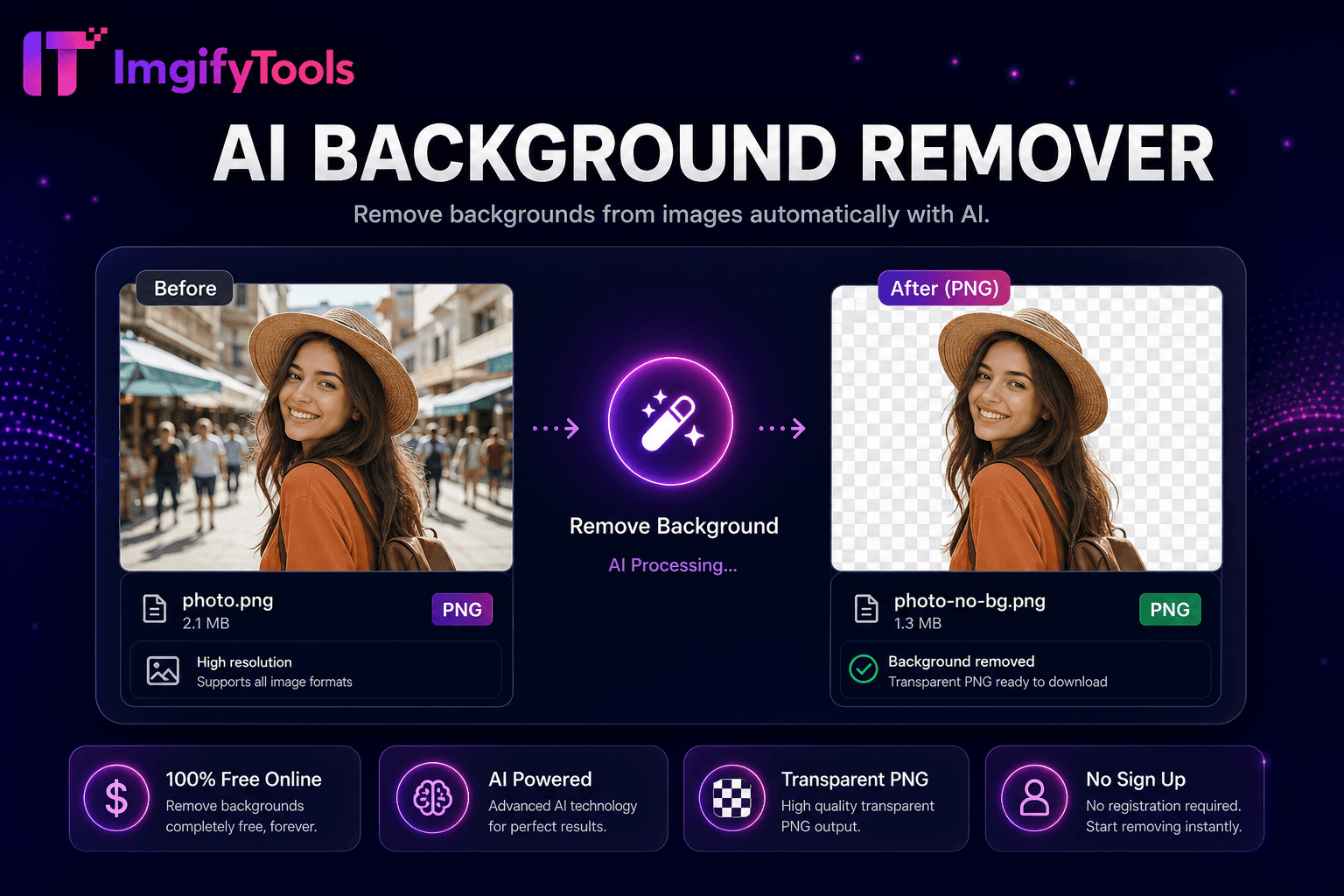
Remove backgrounds from images automatically with AI.
Launch Tool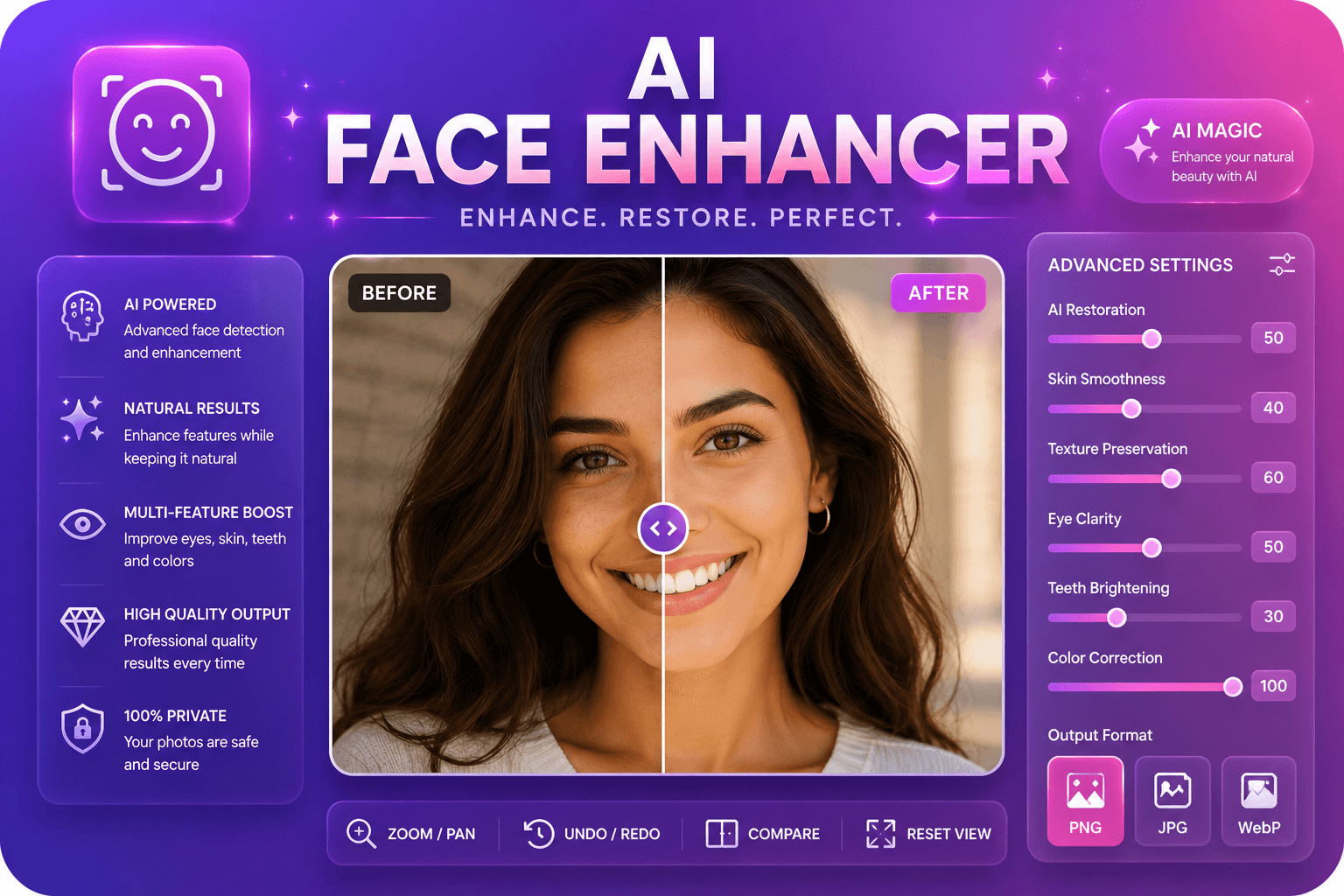
Enhance facial features in photos using AI.
Launch Tool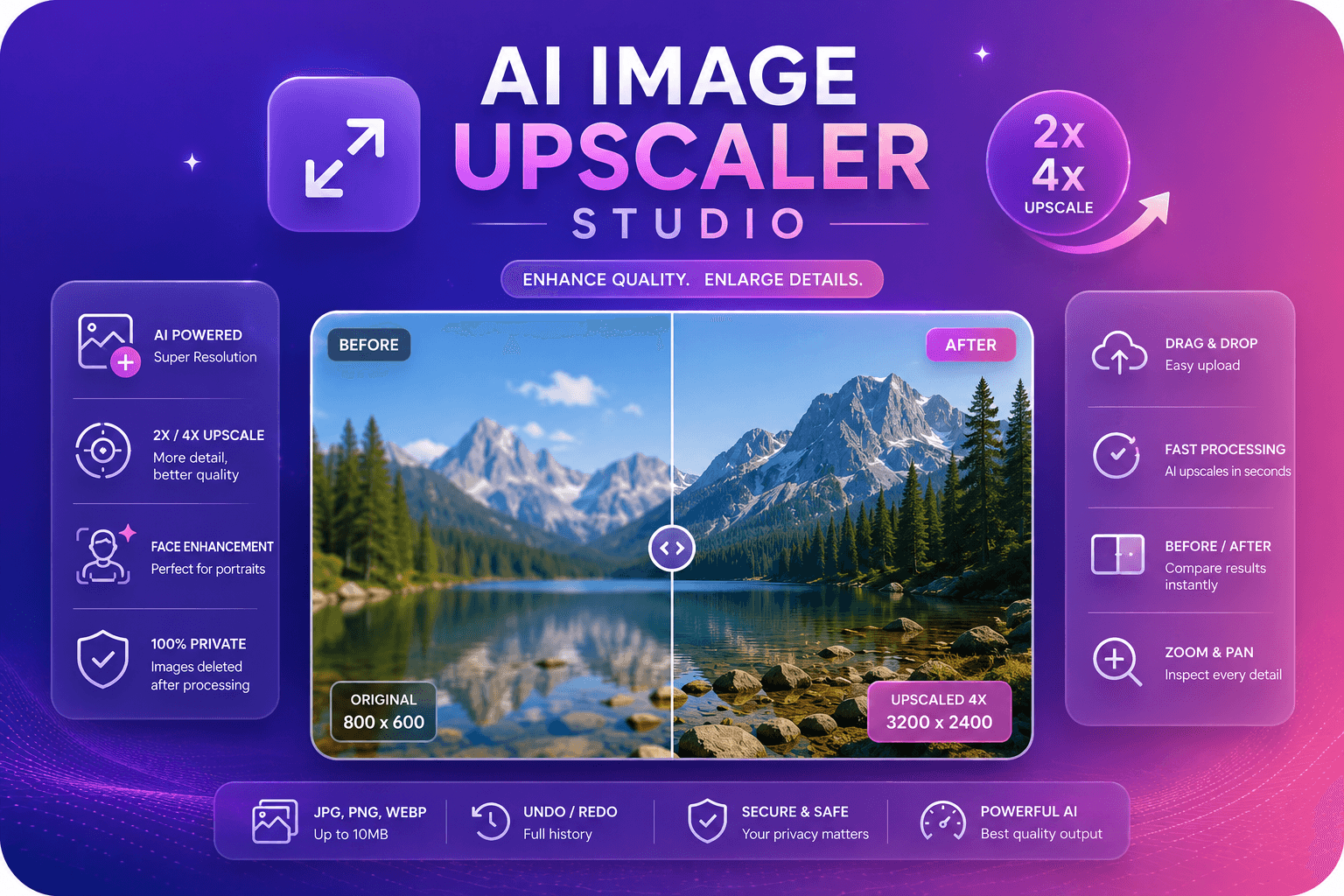
Upscale and enhance image quality up to 4x using AI.
Launch Tool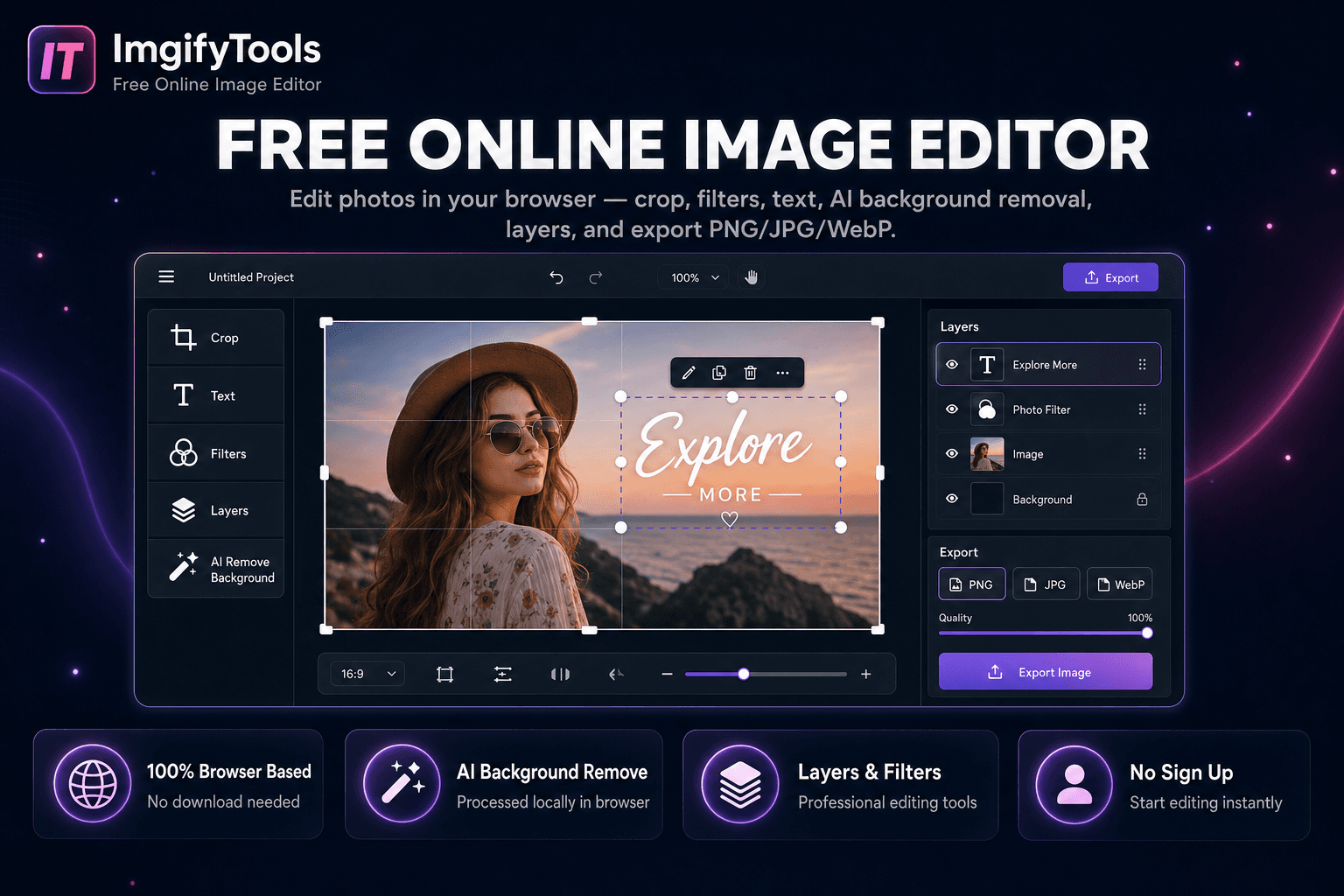
Edit photos in your browser — crop, filters, text, AI background removal, layers, and export PNG/JPG/WebP. No download, no signup.
Launch Tool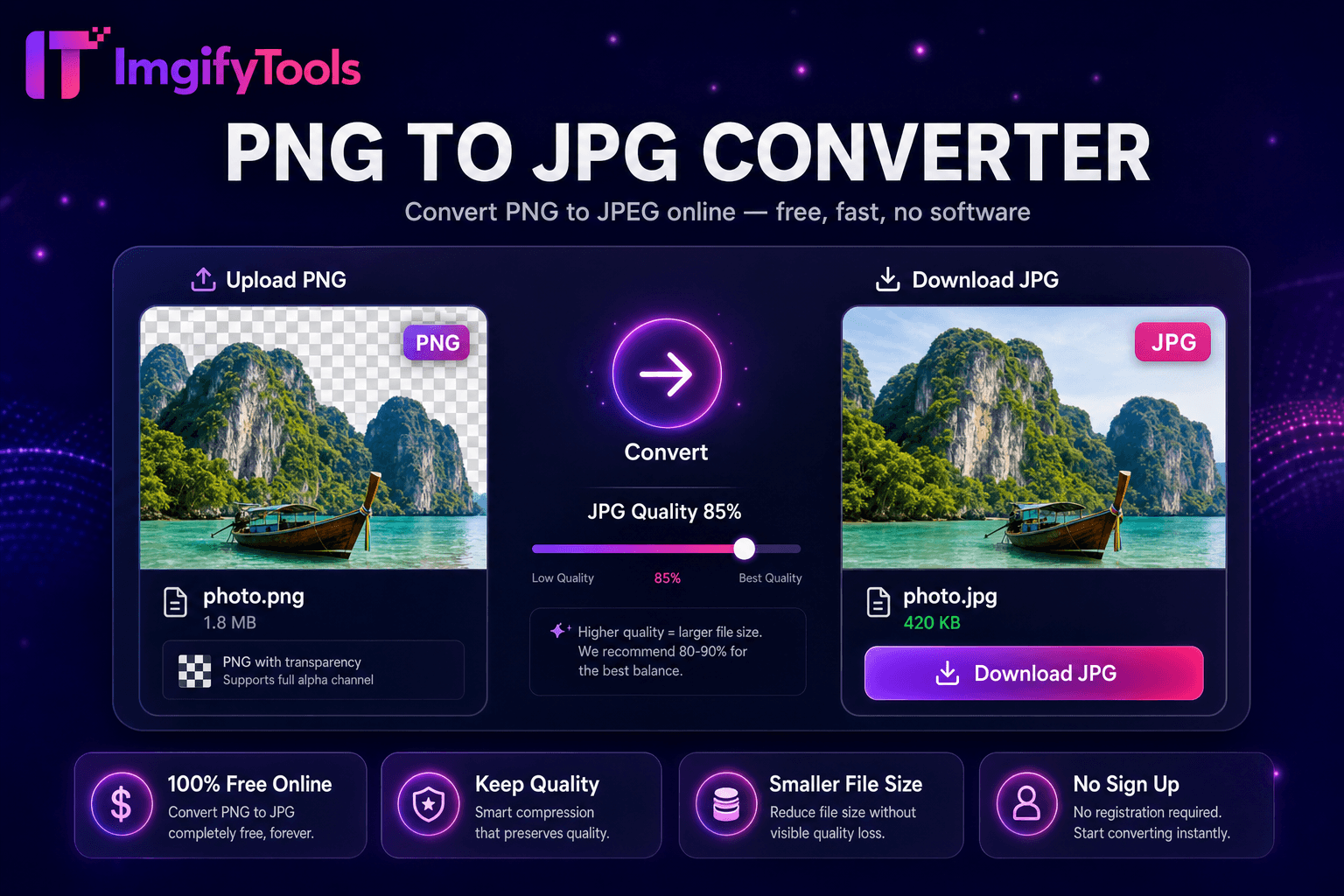
Convert PNG images to JPG online for free.
Launch Tool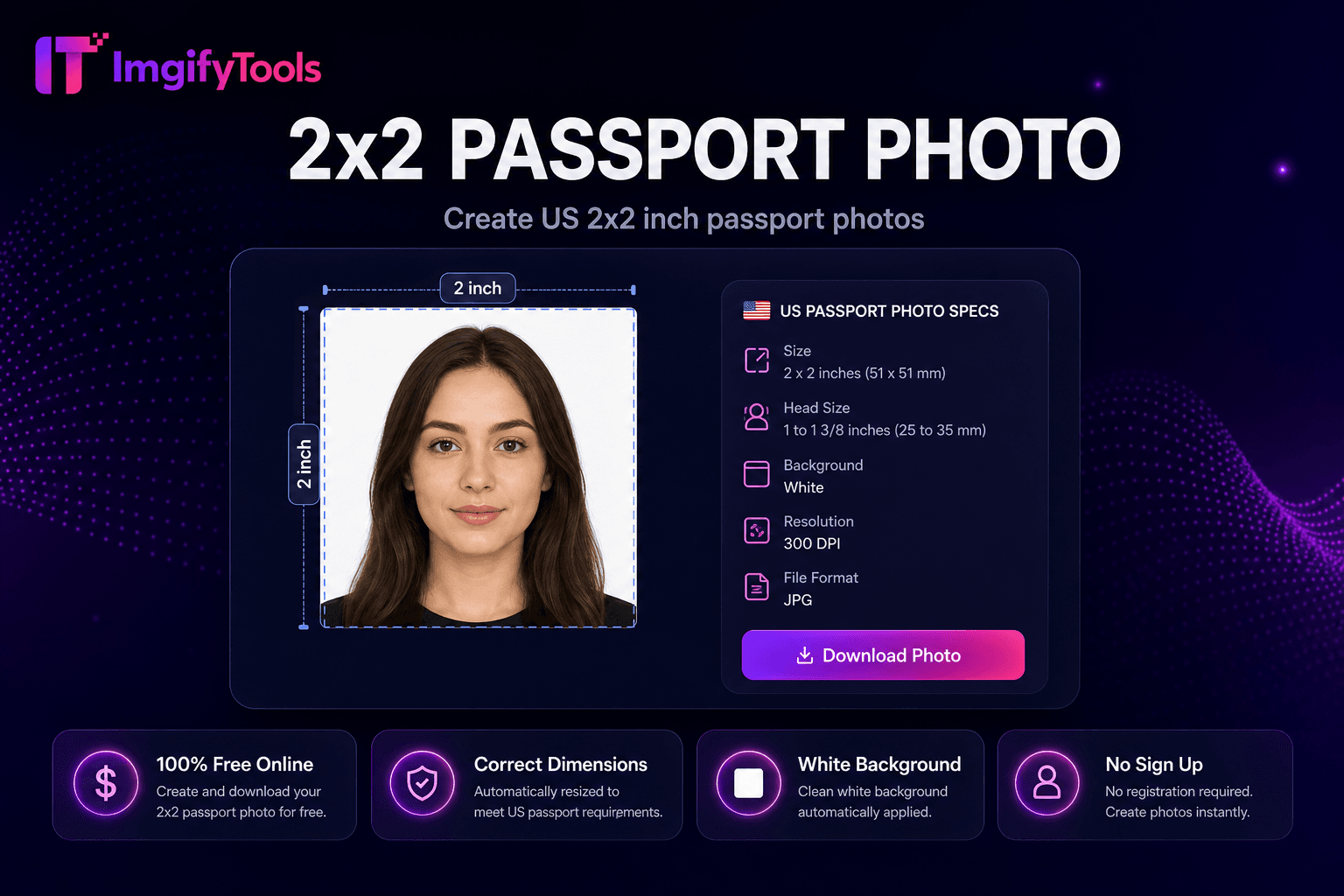
Create US 2×2 inch passport photos.
Launch Tool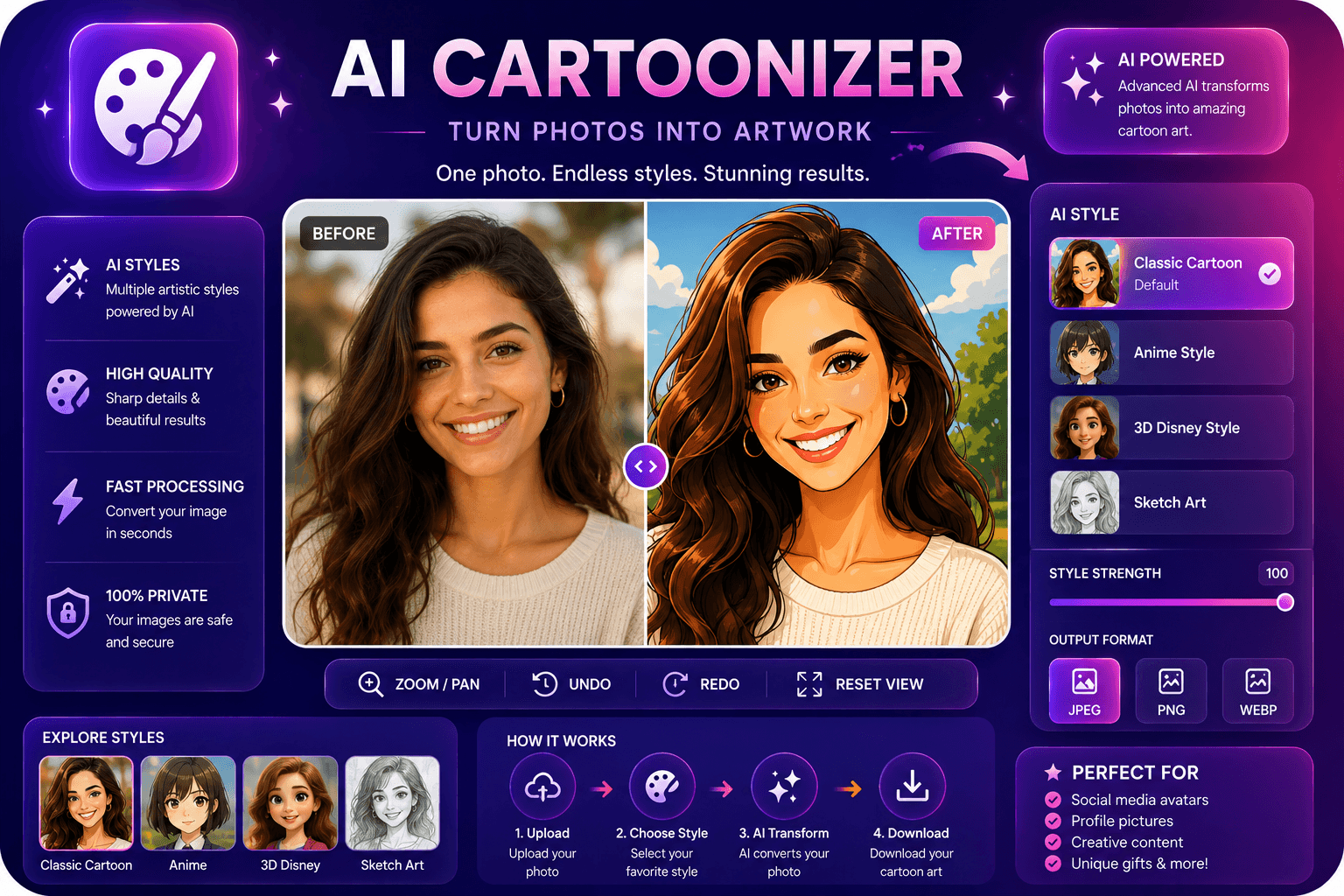
Convert photos to cartoon, anime, or sketch styles.
Launch Tool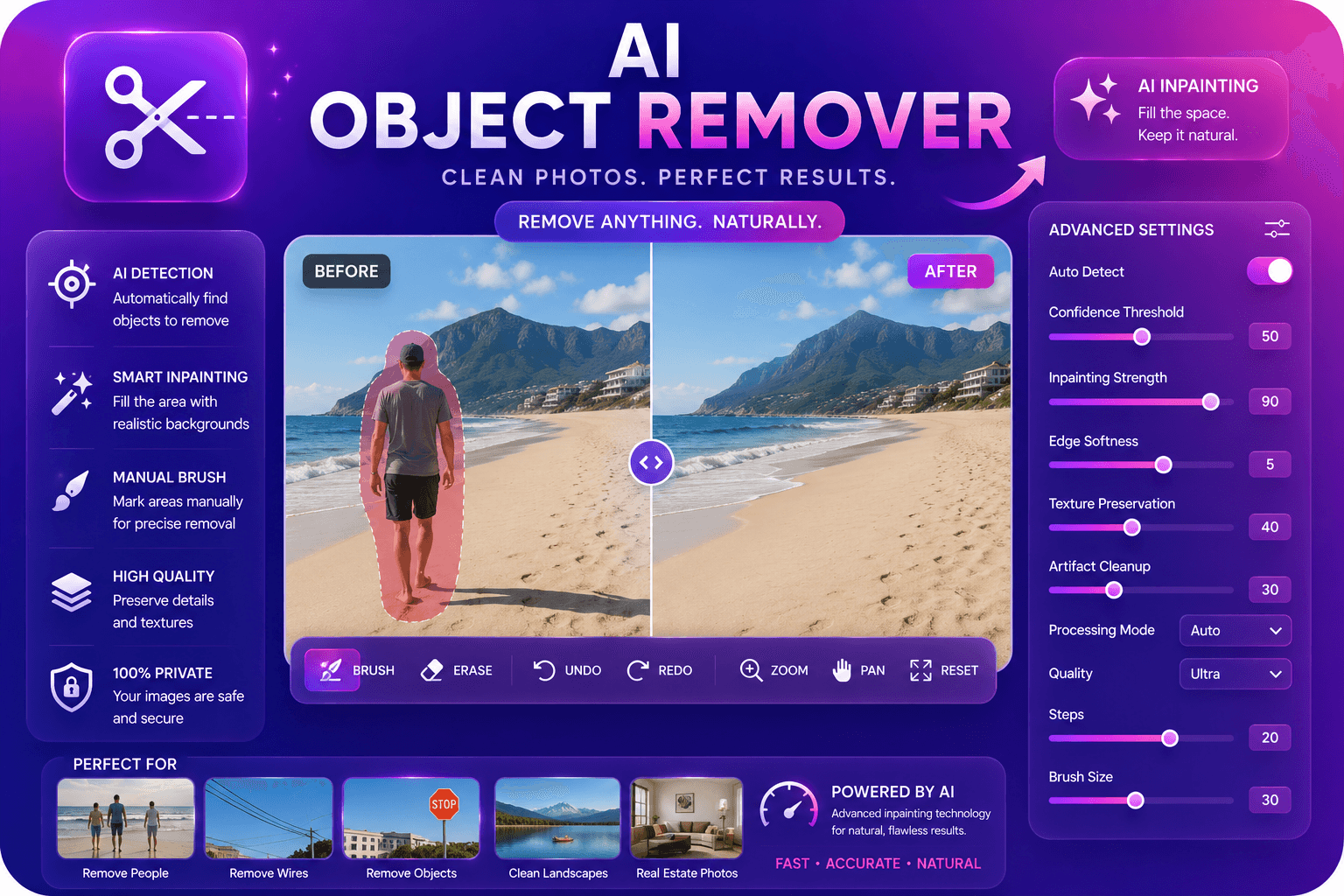
Remove unwanted objects from photos with AI inpainting.
Launch Tool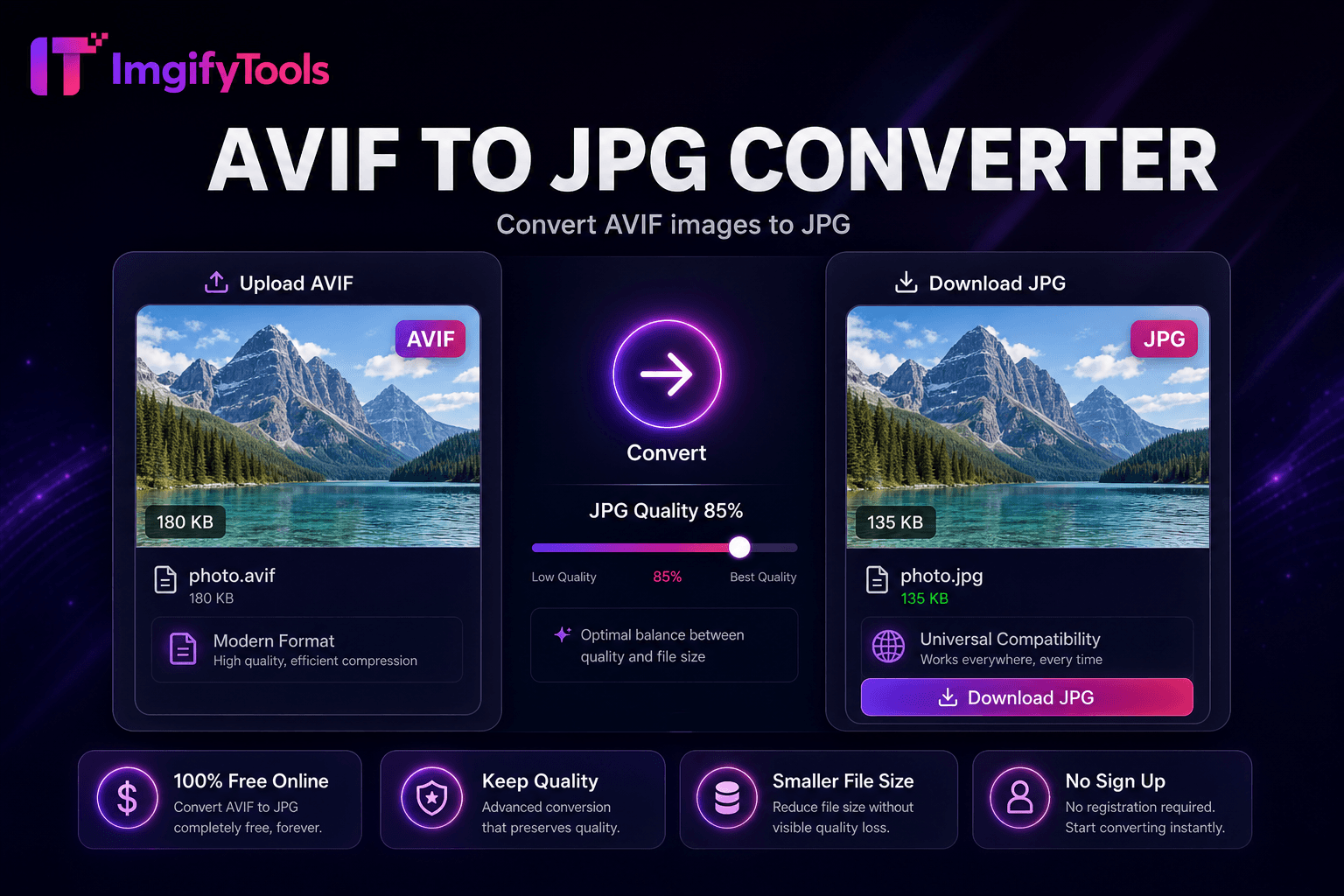
Convert AVIF images to JPG.
Launch Tool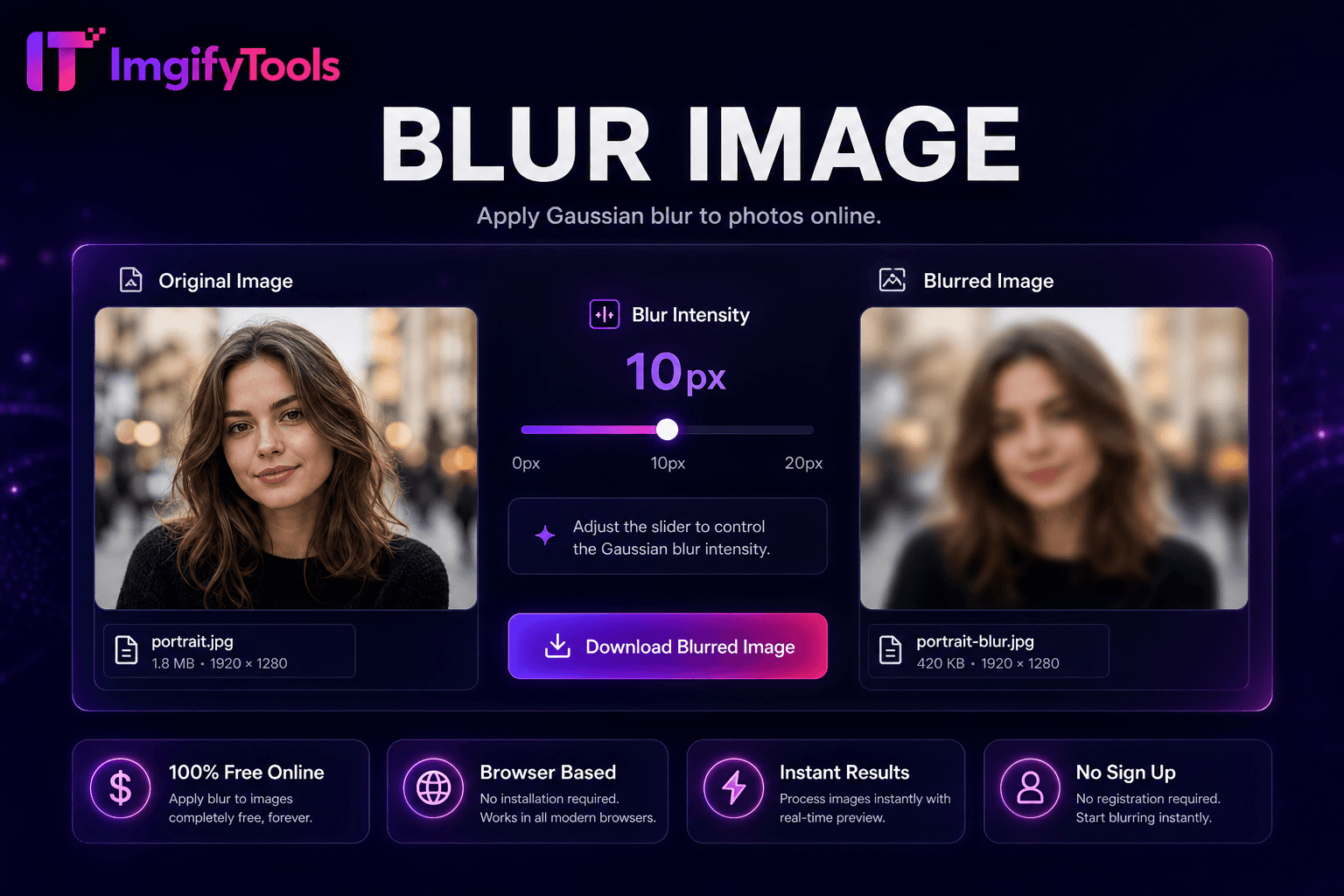
Apply Gaussian blur to photos online.
Launch Tool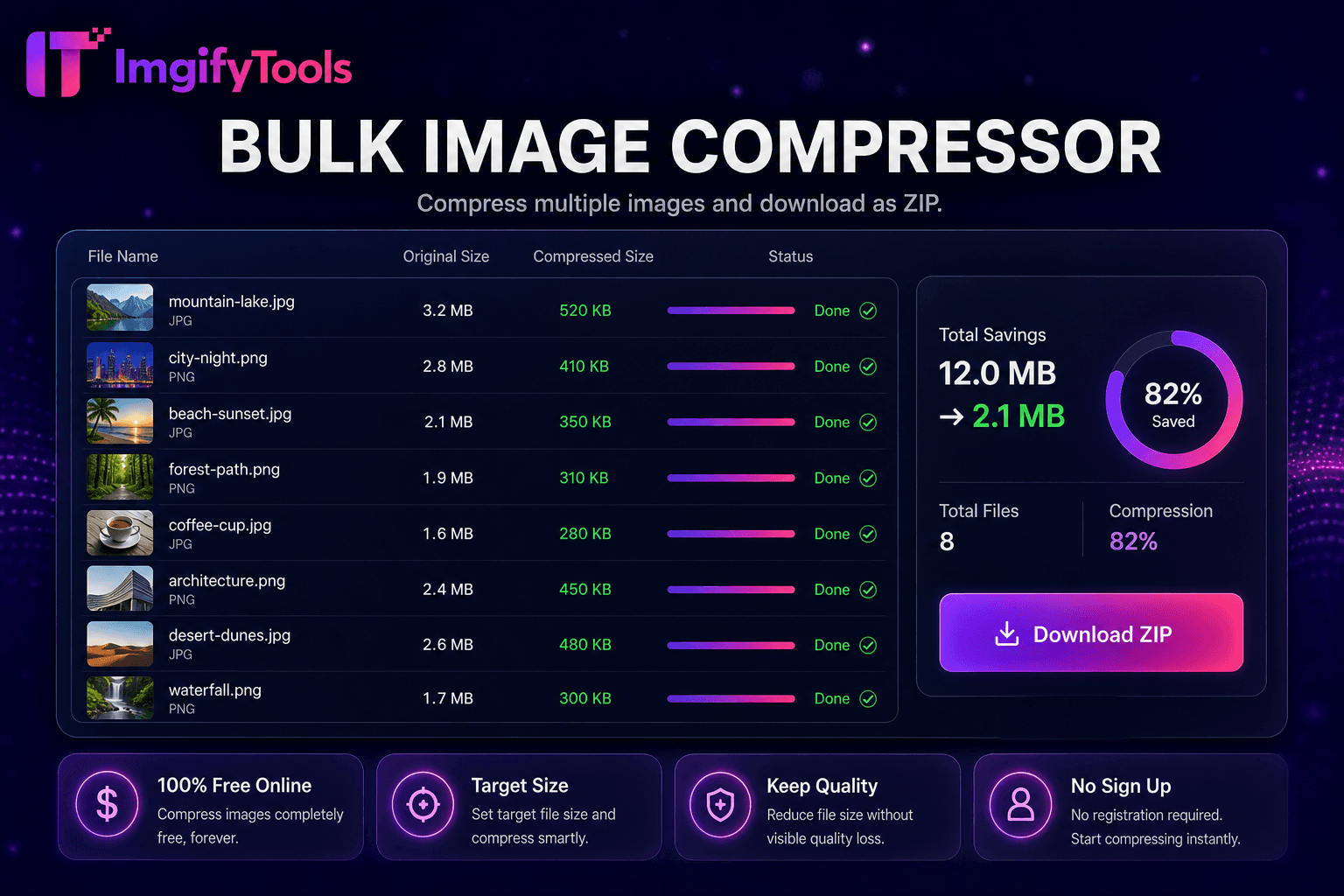
Compress multiple images and download as ZIP.
Launch ToolA practical toolkit for everyday image tasks—marketplace listings, social posts, document uploads, and quick cleanup—without forcing an account wall.
Open a tool, upload a file, adjust available settings, and download the result. No desktop suite required for common jobs.
Choose a background remover, upscaler, converter, or the full image editor depending on what you need right now.
Core tools are free to use without creating an account, so you can finish a single export or test a workflow quickly.
Privacy, terms, and contact details are available when you want to understand how files and data are handled.
Most tools follow the same simple path. The image editor keeps primary editing on your device; many AI and convert tools upload a file for temporary server processing.
Pick a popular tool below or browse the full directory for converters, editors, and AI utilities.
Drag and drop or browse for a JPG, PNG, or WebP file within the tool’s size limits (typically about 10 MB).
Use the options shown for that tool—scale, format, background color, or editor controls.
Run the tool, review the result against your original when a preview is available, then re-run if needed.
Save the output to your device. We do not require an account for standard downloads.
Useful when you need a clean export for a real task—not a full design suite.
Prepare product cutouts, white backgrounds, and web-friendly formats for listings.
Upscale soft images, swap backgrounds, and tidy portraits for posts and thumbnails.
Resize or convert files to meet form, email, or portal requirements.
Produce quick asset variations without installing or licensing heavy software.
Honest bounds help you pick the right tool and avoid surprises.
Uploads are limited (commonly around 10 MB). Very large originals may need compression first.
Background removal, upscaling, and face enhancement depend on source quality, lighting, and subject complexity. Results are not guaranteed.
The image editor works primarily in your browser. Many AI and convert tools send files to ImgifyTools servers for that session.
These tools solve common image jobs. They are not a full replacement for professional desktop design suites.
Some tools, such as the image editor, process images in your browser. AI and convert tools upload files to ImgifyTools servers for your session, process them temporarily, and are not kept as a permanent library of uploads by default. Read the privacy policy for details, and see About, Contact, Terms, Cookie Policy, and Copyright / DMCA for trust information.
We do not claim that every file stays on your device. Processing location depends on the tool you use.
Jump into a common workflow, or open the full tools directory.
Export a transparent PNG cutout for products, portraits, and ads.
Enlarge soft or small images for banners and closer crops.
Improve portrait clarity for profiles and speaker photos.
Replace a backdrop with a solid color or custom scene.
Create smaller files for web, email, and listings.
Crop, adjust, annotate, and export primarily in your browser.
Straight answers about access, processing, and common tools.
Yes. Core image tools are free to use in your browser without paying upfront. Individual tools may still have practical limits such as upload size.
No. You can open a tool and process an image without creating an account for standard workflows.
It depends on the tool. The image editor primarily processes images in your browser. Many AI and convert tools upload files for temporary server-side processing. We do not build a permanent library of uploads by default. See the privacy policy for retention details.
Upload an image to the background remover. The subject is separated from the backdrop so you can download a cutout, typically as a transparent PNG. Results vary with contrast, hair detail, and background complexity.
Standard downloads from core tools do not add a watermark. Watermarking is available as a separate tool if you want to add one.